


How to Install Arch Linux on VirtualBox (Step-by-Step Guide)

 Study duration : 7 Minutes
  0 Comment
If you’ve ever wanted to try Arch Linux without risking your main system, running it inside VirtualBox is the perfect way to start. You get the full Arch experience manual setup, full control, rolling updates but in a safe, isolated environment that you can snapshot, break, and rebuild anytime.
This guide walks you through everything step-by-step, from creating the VM to getting a working graphical desktop.
Why Run Arch Linux on VirtualBox?
Trying Arch in a VM feels a bit like having a practice notebook. You can write anything you want in it, tear the page out when you mess up, and start again. If you’re not ready to wipe a real disk or replace your daily OS, this is the perfect middle point.
You’re free to play with settings, install different desktops, tweak configs, or even completely ruin the install. Nothing bad happens to your actual machine. Worst case? Close the window → make a new VM → done. It’s weirdly liberating.
I usually keep a few separate Arch VMs around each one for a different experiment or idea I’m testing. One for terminal experiments, one for trying random environments like XFCE or KDE, and sometimes a clean one just to test a package without worrying. If a VM isn’t helping me anymore, I usually just toss it and build a new one when I need it.No emotions attached.
Of course, a VM isn’t lightning-fast. If your laptop is already gasping for air with a few browser tabs open, running a full desktop inside VirtualBox won’t feel smooth. That’s totally normal—you’re basically running a computer inside another computer.
And the downsides because they do exist
- If your hardware is on the older side, running a VM will naturally feel slower.
- Heavy desktops like GNOME or KDE might lag.
- You’re splitting RAM and CPU with your host system.
But still, for learning Arch and poking around without fear, VirtualBox beats almost everything.
Step-by-Step: Installing Arch Linux on VirtualBox
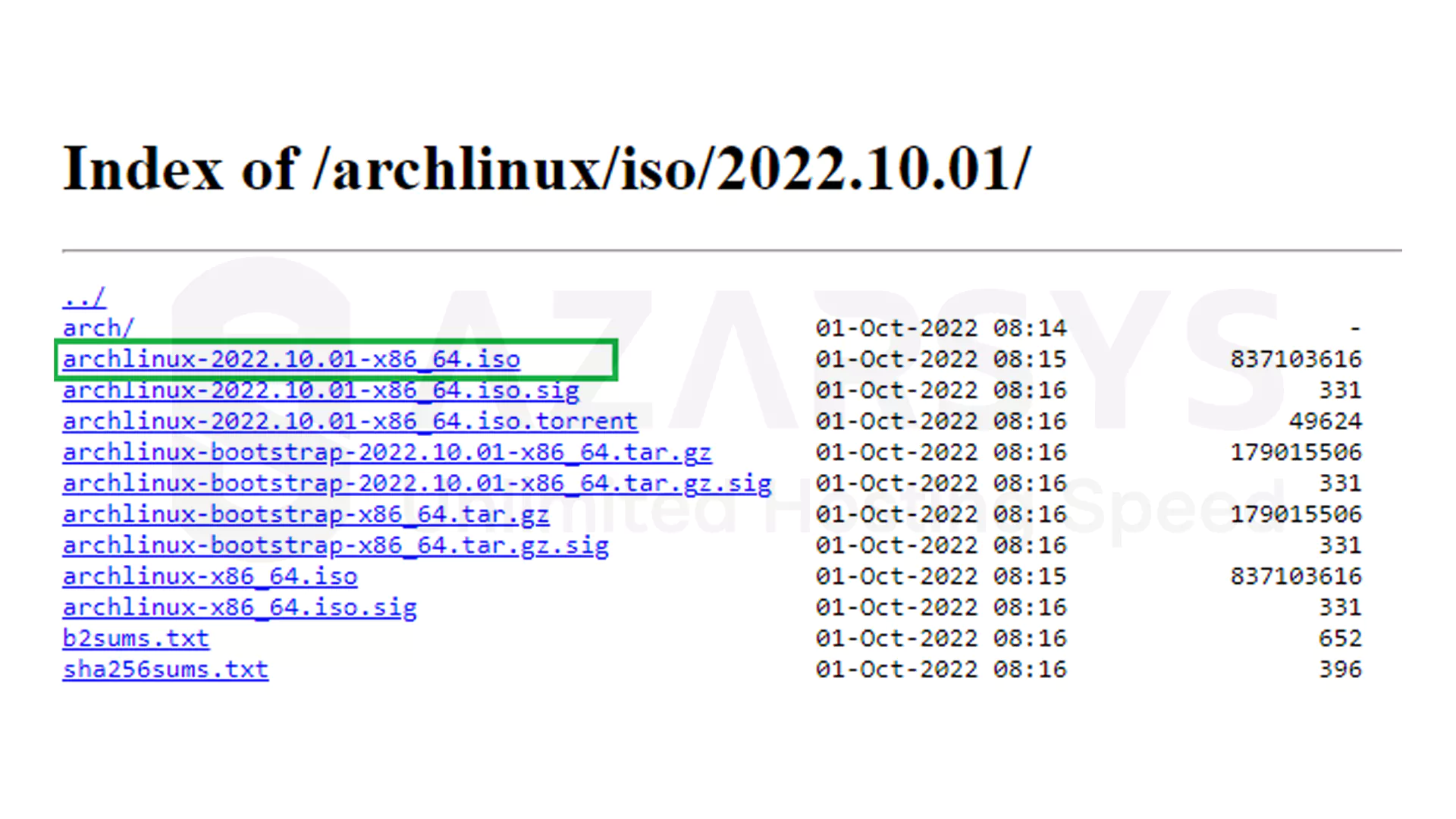
Download the Arch Linux ISO
Head to Arch’s official website and grab the newest ISO. It’s right on the homepage. Save it somewhere you won’t forget.
Create a New Virtual Machine
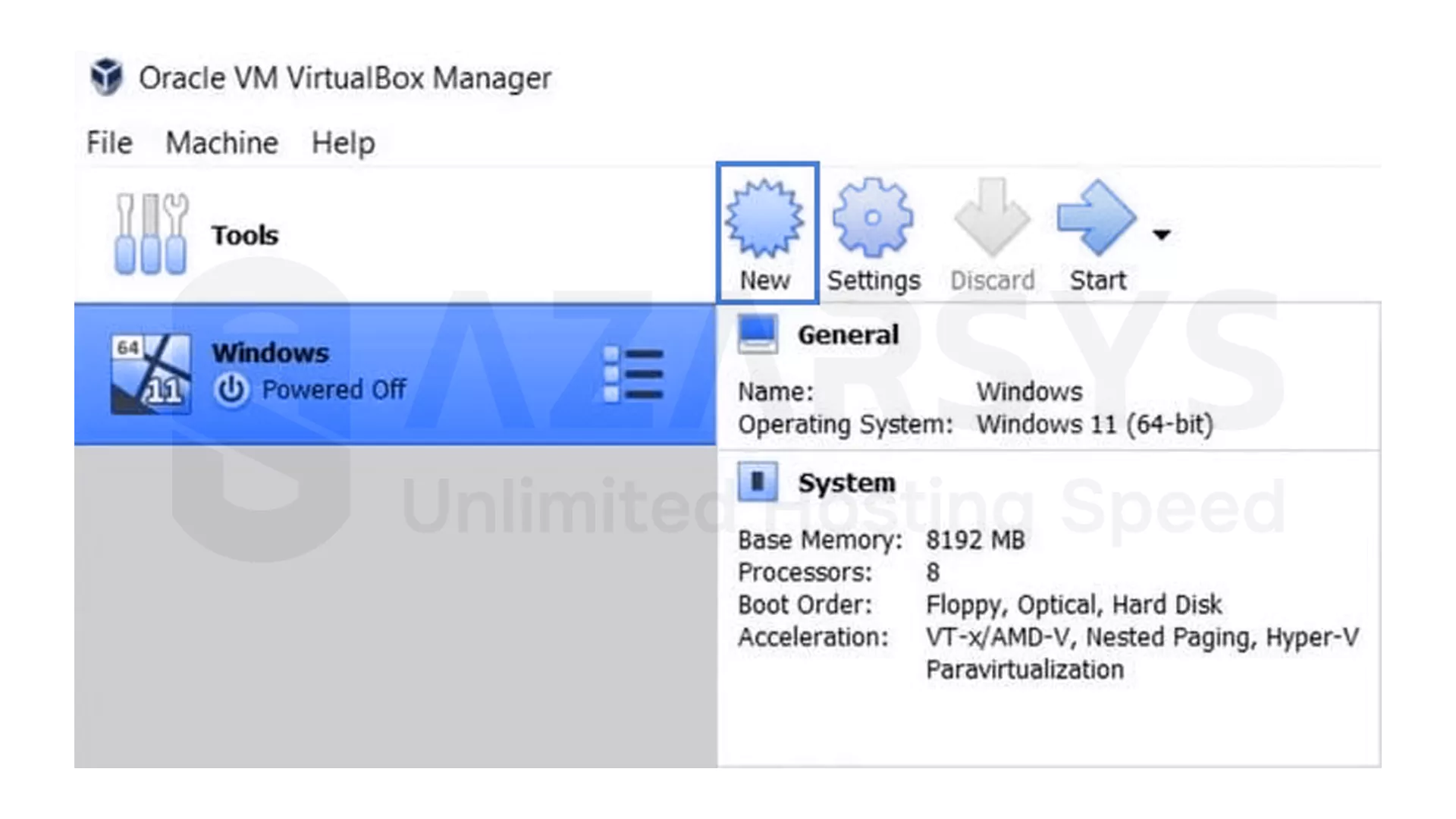
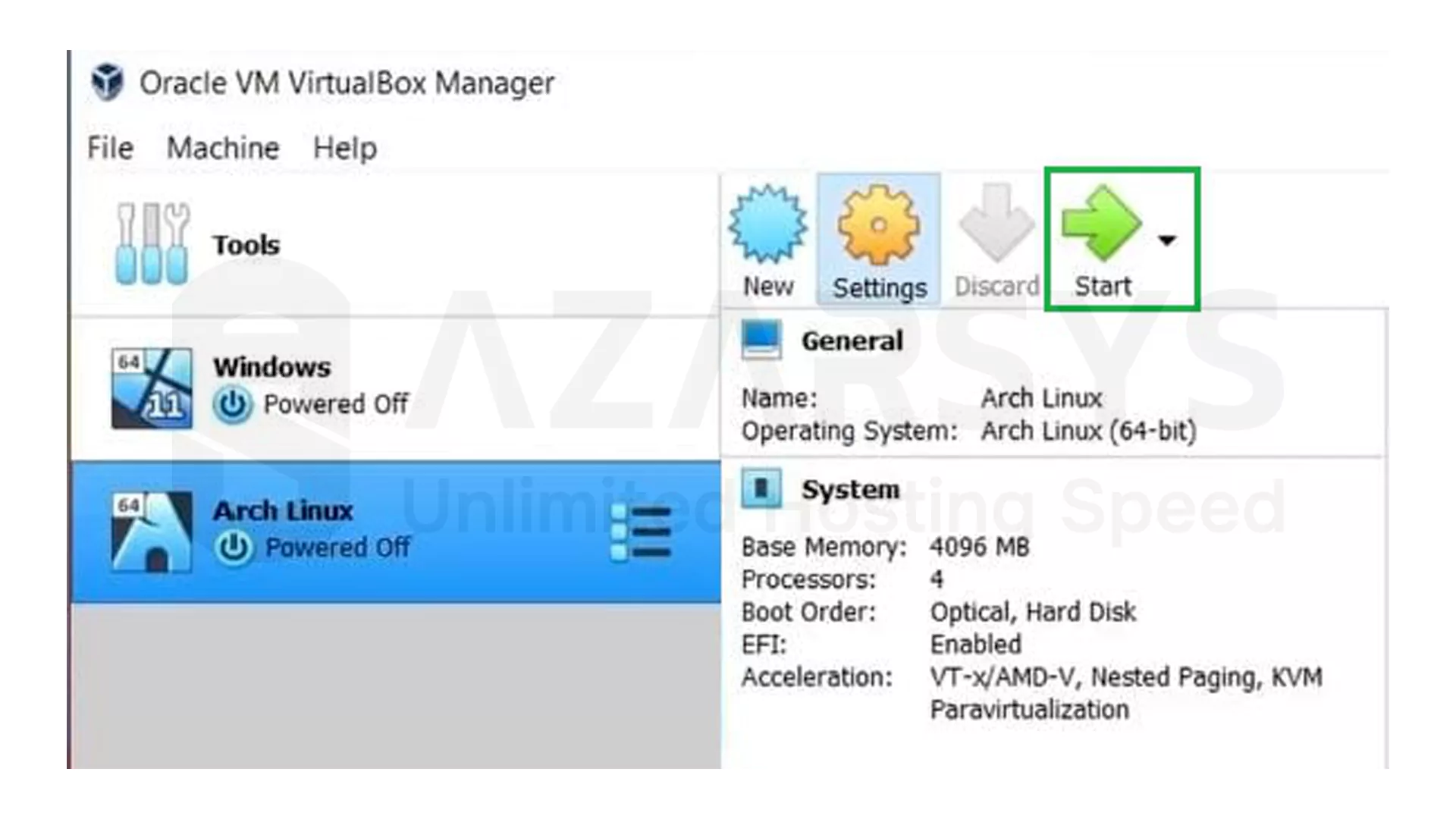
Open VirtualBox → New → name it “Arch Linux.”
VirtualBox usually detects the settings automatically, so you don’t need to touch much here.
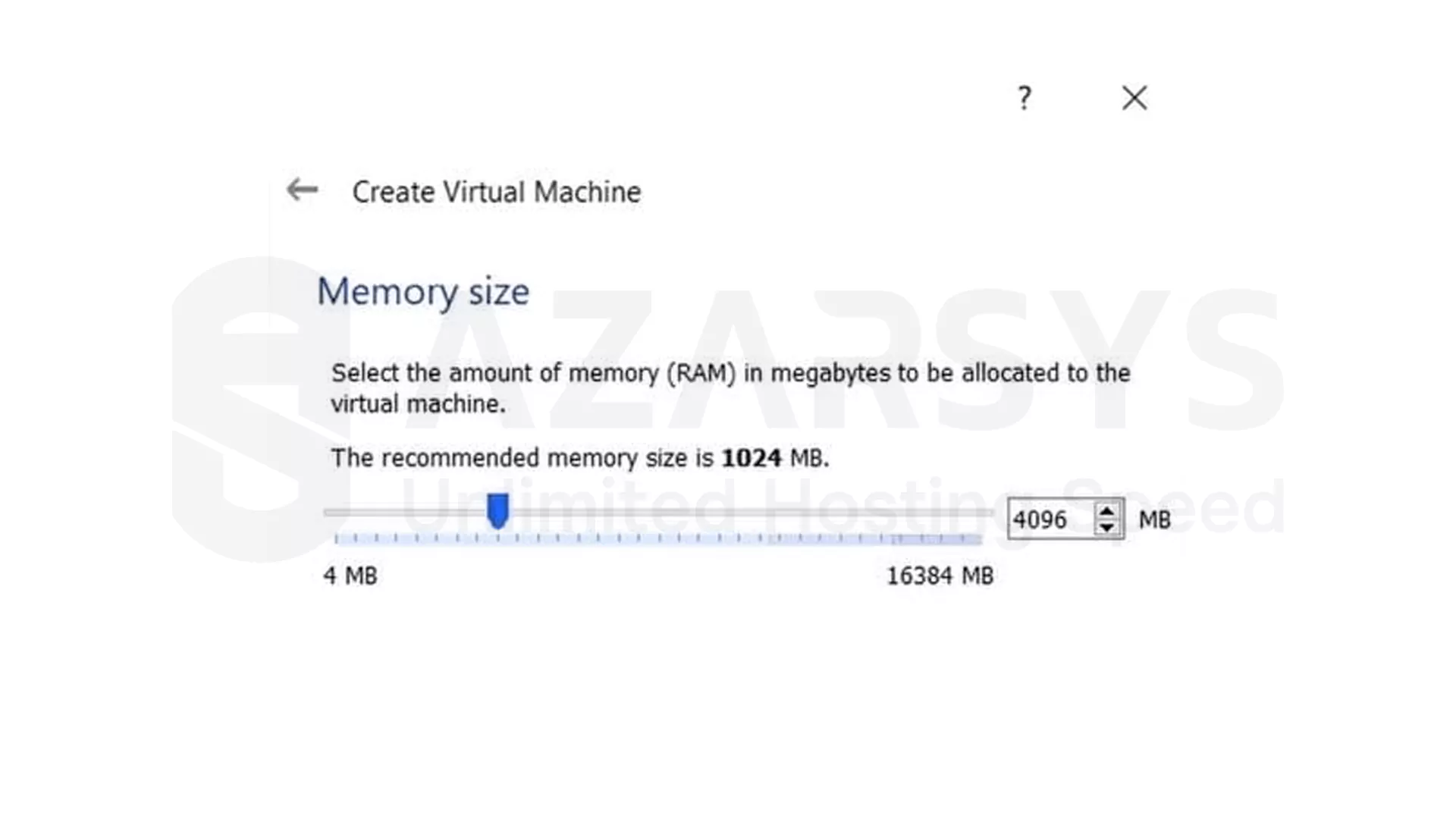
Allocate Memory (RAM)
Give the VM at least 2 GB memory if you can. It works with less, but you’ll feel the difference.
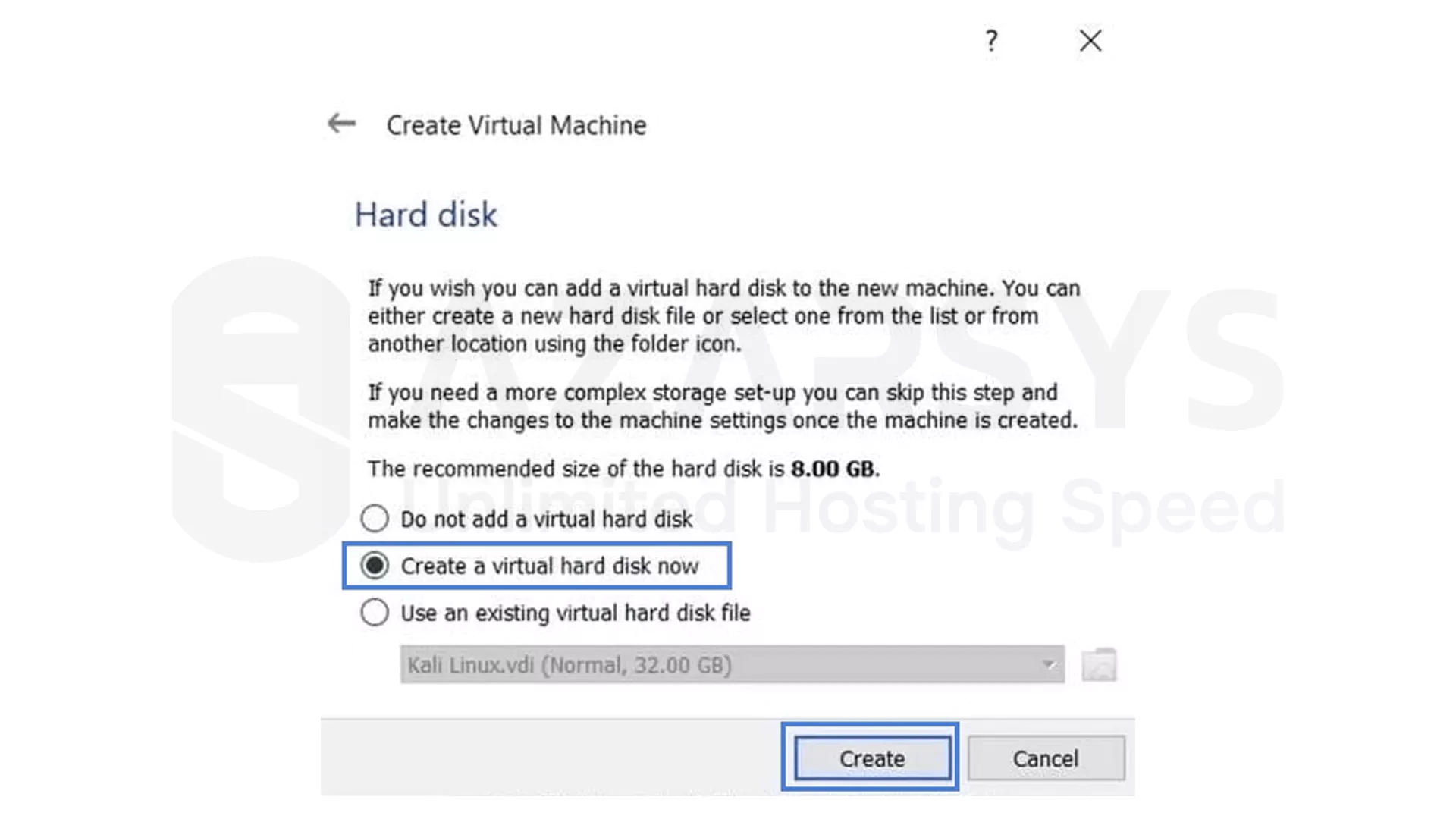
Create a Virtual Hard Disk
Choose VDI, set it to dynamically allocated, and give it around 20 GB. If you want a full desktop later, maybe pick a little more.
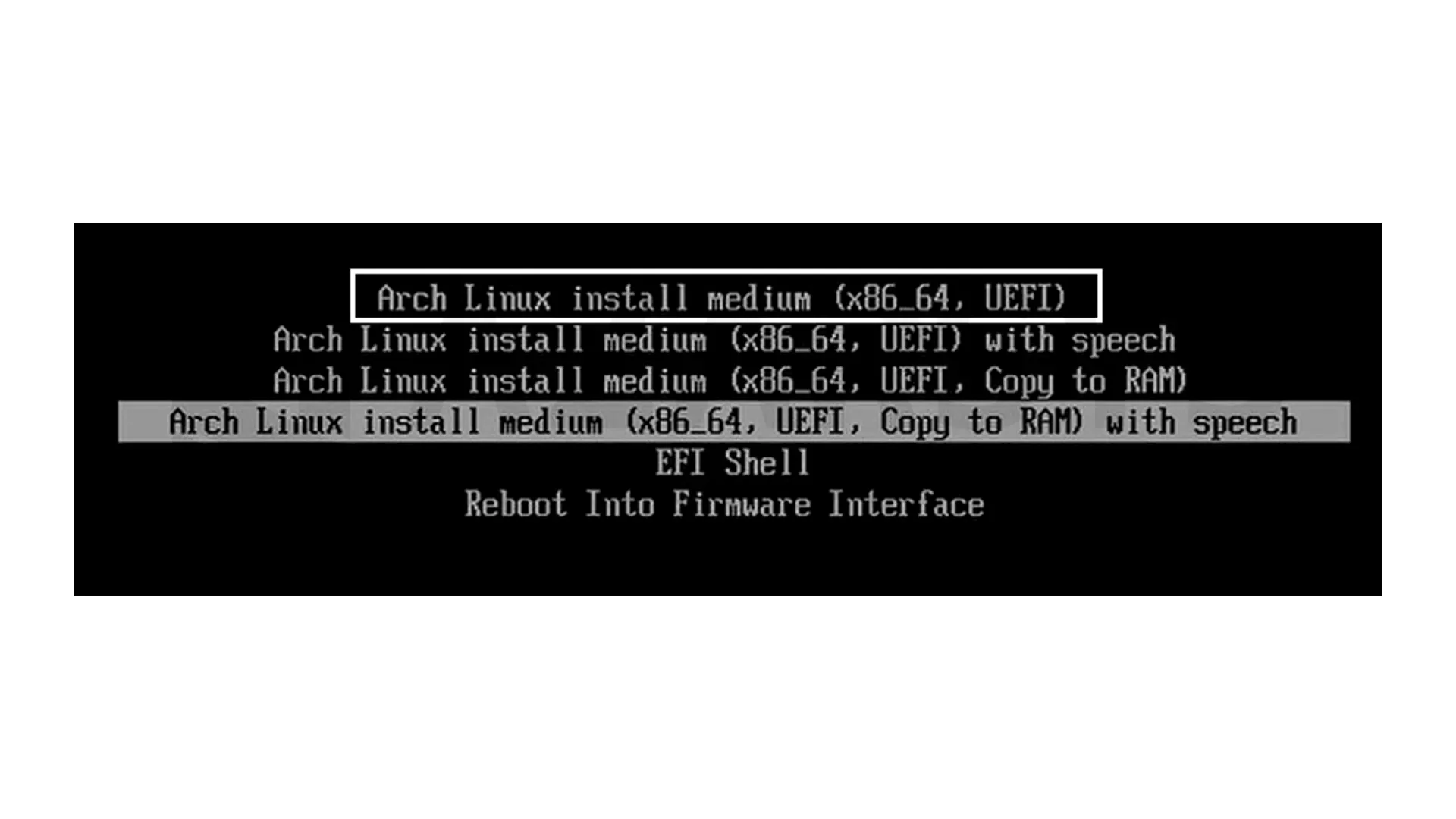
Boot from the ISO
Start the VM, pick the ISO, press Enter on the default boot option, and wait for the live environment to load.
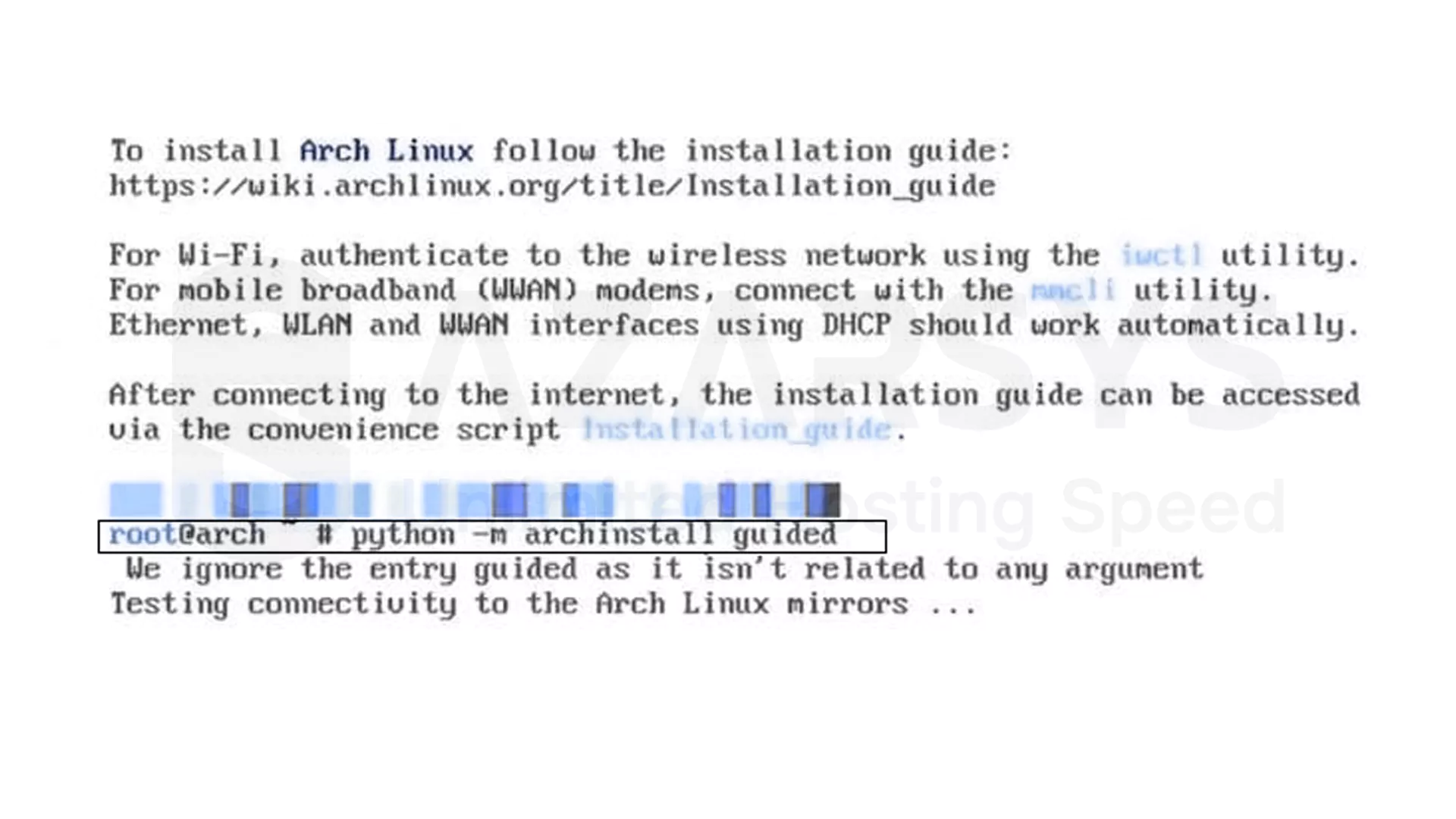
Start the Installation
Arch’s guided installer makes life easier now. Just type:
archinstall
Choose the options you like (or leave the defaults), let it download the packages, and wait until you see the success message.
Boot into your new system
Restart the VM, remove the ISO, and boot from the disk. You’ll land in your freshly installed Arch system.
What using Arch inside VirtualBox actually feels like
Running Arch in a VM is mostly a playground. You’re free to try anything without worrying about breaking your real machine. Some things might feel a little sluggish if you use a heavy desktop or your hardware is old, but for learning and experimenting, you don’t need blazing speed.
It also teaches you more than you might expect especially networking, partitioning, configs, and the way Arch handles its rolling updates.
Final Thoughts
If you want to explore Arch Linux without committing to a full install on hardware, VirtualBox is an easy doorway. Experiment all you want. If the system falls apart, you just reset it or reinstall from scratch. After spending some time inside a VM, doing a real install won’t feel nearly as intimidating.
Just treat it like a safe little lab where nothing you do can damage your main system. And honestly, that makes the learning part a lot more enjoyable.